
> ## Documentation Index
> Fetch the complete documentation index at: https://docs.replit.com/llms.txt
> Use this file to discover all available pages before exploring further.

# Publish your app

> Choose release settings, publish your app, verify the live version, and monitor it after launch.

export const PublishingPlanAvailability = () => <Note>
    Publishing is available on every plan. Starter includes {FreeDeployments}
    published app, which expires after 30 days and can be republished. Core and
    Pro include additional publishing options. See [Deployment
    pricing](/billing/deployment-pricing) and [Starter
    plan](/billing/plans/starter-plan) for current limits.
  </Note>;

export const YouTubeEmbed = ({videoId, title = "YouTube video", startAt}) => {
  if (!videoId) {
    return null;
  }
  let url = "https://www.youtube.com/embed/" + videoId;
  if (startAt) {
    url = url + "?start=" + startAt;
  }
  return <Frame>
      <iframe src={url} title={title} allow="accelerometer; autoplay; clipboard-write; encrypted-media; gyroscope; picture-in-picture; web-share" allowFullScreen></iframe>
    </Frame>;
};

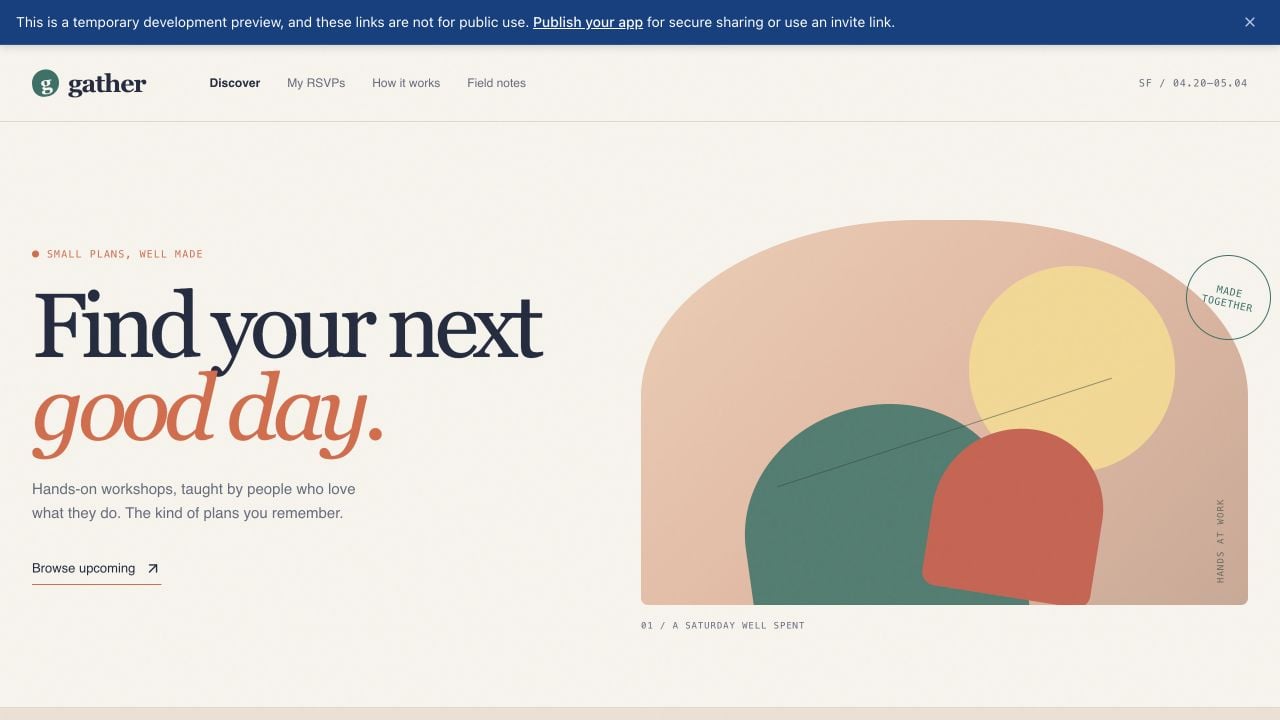
You have probably built and tested your app in **Preview**, and now you want other people to use it. The preview URL is temporary and intended for development—it is not the link to distribute publicly. When you open it, a banner points you to publishing for secure sharing.

<Frame>
  <img src="https://mintcdn.com/replit/82Q9hMxIoxepT4ct/images/publish-gather/00-development-preview-banner.jpg?fit=max&auto=format&n=82Q9hMxIoxepT4ct&q=85&s=f0f282033a3c4c9175d995d4c29db553" alt="The Gather development preview with a banner explaining that the URL is temporary and linking to Publish your app for secure sharing" width="1280" height="720" data-path="images/publish-gather/00-development-preview-banner.jpg" />
</Frame>

Publishing creates a **production deployment**: a stable, shareable version of your app that runs at its own URL. The development preview is where you build and test; the production deployment is the version your visitors use. Because they are separate, you can continue working without changing the live app until you publish again.

Publishing is more than making the preview public. Replit packages the app, provisions the resources it needs, checks the release, and routes a domain to the resulting deployment.
<YouTubeEmbed videoId="ski8_MUYO4M" title="Publish your app on Replit" />

## Before you publish

Before following the banner or opening **Publish**, use Preview to test the main user journey, check the layout at the screen sizes you support, and fix any errors reported by Agent. Publishing makes the current version available to other people, so avoid including secrets or private test data in the app.

## Publish your app

<Steps>
  <Step title="Open the Publish dialog">
    Select **Publish your app** in the development-preview banner to return to the publishing flow. You can also open the project yourself and select **Publish** in the upper-right corner of the Project Editor while working in Build or Design.

    <Tip>
      You can also ask Agent in the prompt box: `Publish this app.` Agent can prepare the release or direct you to the required confirmation.
    </Tip>
  </Step>

  <Step title="Choose the domain and access settings">
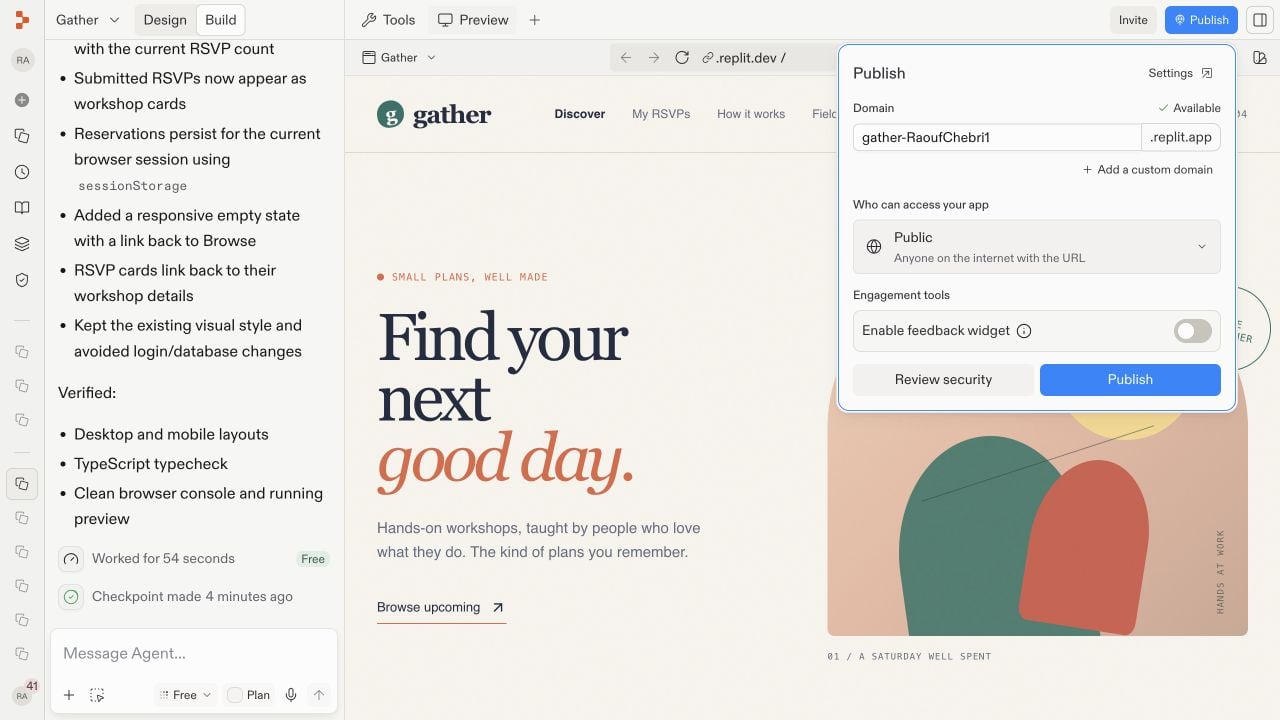
    A **domain** is the address visitors use to reach your deployment. Review the generated `.replit.app` domain and change its available name if needed. Then choose an **access level**, which determines who is allowed to open the app:

    * **Public** makes the app available to anyone with the link.
    * **Password protected** requires visitors to enter a shared password.
    * **Workspace only** limits access to members of your workspace.
    * **Invite only** limits access to the people or groups you select.

    For details on each option, see [App access](/features/publishing/private-deployments).

    You can also enable the feedback widget so visitors can send feedback from the published app.

    <Frame>
      <img src="https://mintcdn.com/replit/82Q9hMxIoxepT4ct/images/publish-gather/01-publish-settings.jpg?fit=max&auto=format&n=82Q9hMxIoxepT4ct&q=85&s=a755466f940ad3e4cdc46507acd72499" alt="The Gather Publish dialog showing its generated domain, public access setting, feedback widget, security review, and Publish button" width="1280" height="720" data-path="images/publish-gather/01-publish-settings.jpg" />
    </Frame>

    <PublishingPlanAvailability />
  </Step>

  <Step title="Review security and publish">
    Select **Review security** to check the release before it goes live. When the domain, access, and security settings are ready, select **Publish**.

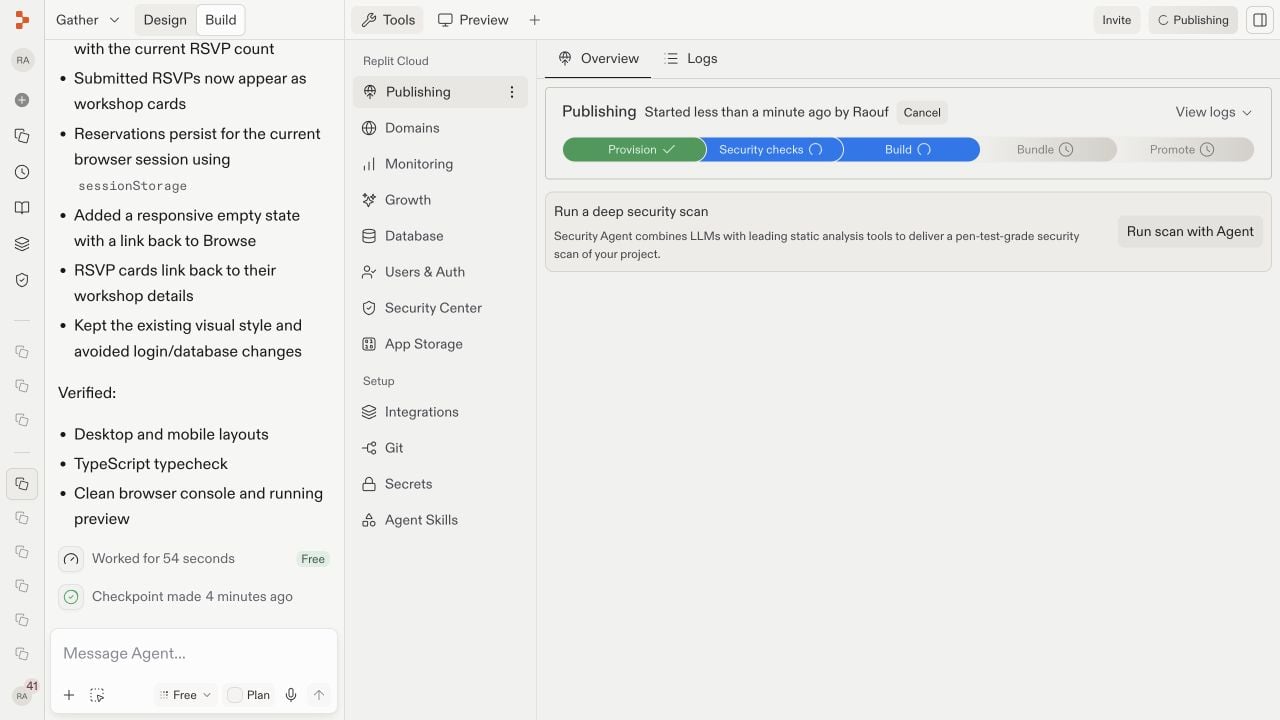
    Replit provisions the deployment, runs security checks, builds and bundles the app, and promotes the release. Provisioning prepares its cloud resources; building and bundling turn the project into a production-ready package; promoting makes that package the live version. Keep the project open while the stages complete.

    <Frame>
      <img src="https://mintcdn.com/replit/82Q9hMxIoxepT4ct/images/publish-gather/02-publishing-progress.jpg?fit=max&auto=format&n=82Q9hMxIoxepT4ct&q=85&s=f7033afaf58fc5c5e1c9a0c0086d8d61" alt="The Gather project showing publishing in progress after the release was started" width="1280" height="720" data-path="images/publish-gather/02-publishing-progress.jpg" />
    </Frame>
  </Step>

  <Step title="Open and verify the live app">
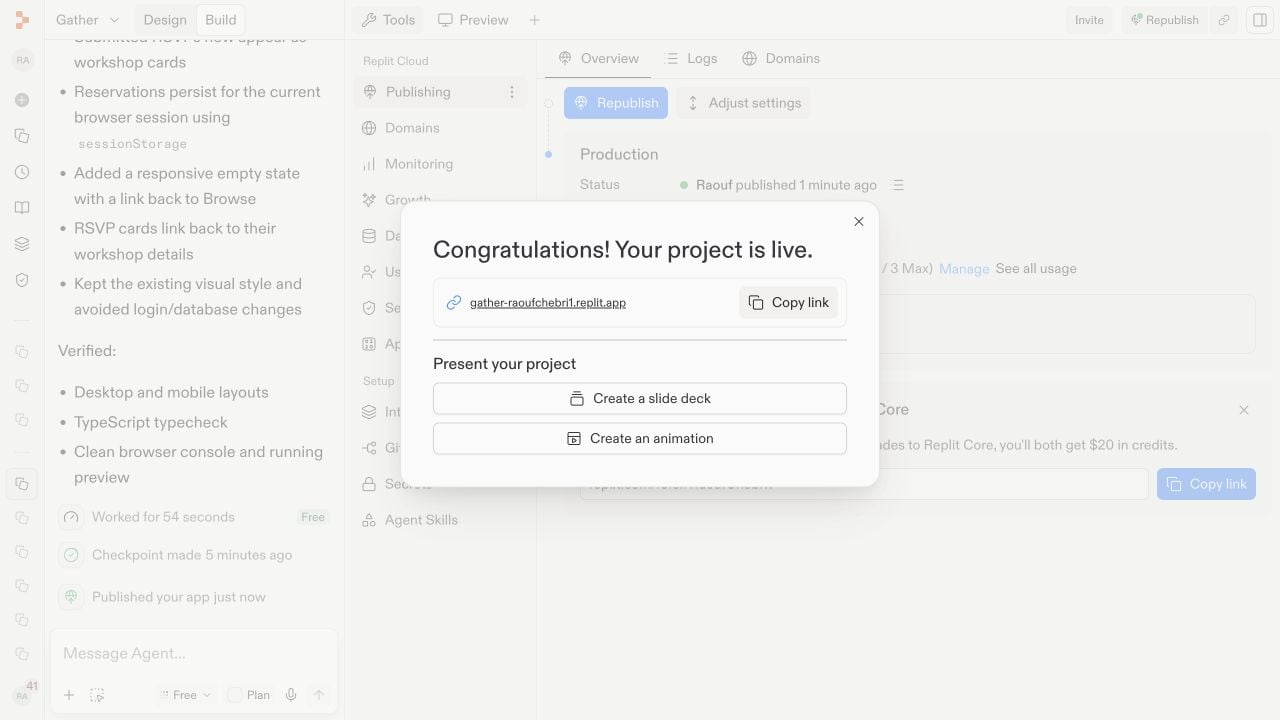
    When publishing finishes, Replit shows the deployment status and public URL. Open the URL and test the live app — not only the development preview — to confirm that its pages and most important actions work as expected.

    <Frame>
      <img src="https://mintcdn.com/replit/82Q9hMxIoxepT4ct/images/publish-gather/03-published-project.jpg?fit=max&auto=format&n=82Q9hMxIoxepT4ct&q=85&s=7020bc214dcafbcfc67ec35f1bbf36c0" alt="The Gather project after publishing, showing the successful production status and live URL" width="1280" height="720" data-path="images/publish-gather/03-published-project.jpg" />
    </Frame>

    <Frame>
      <img src="https://mintcdn.com/replit/82Q9hMxIoxepT4ct/images/publish-gather/04-live-site.jpg?fit=max&auto=format&n=82Q9hMxIoxepT4ct&q=85&s=389ee3320b672823997c4687ec7b9180" alt="The published Gather workshop-discovery app open at its public replit.app URL" width="1280" height="720" data-path="images/publish-gather/04-live-site.jpg" />
    </Frame>
  </Step>
</Steps>

## Understand the published project

After publishing, the project has two related parts: the editable project where you continue building and the production deployment currently serving visitors. Open **Tools** to inspect and manage that production environment.

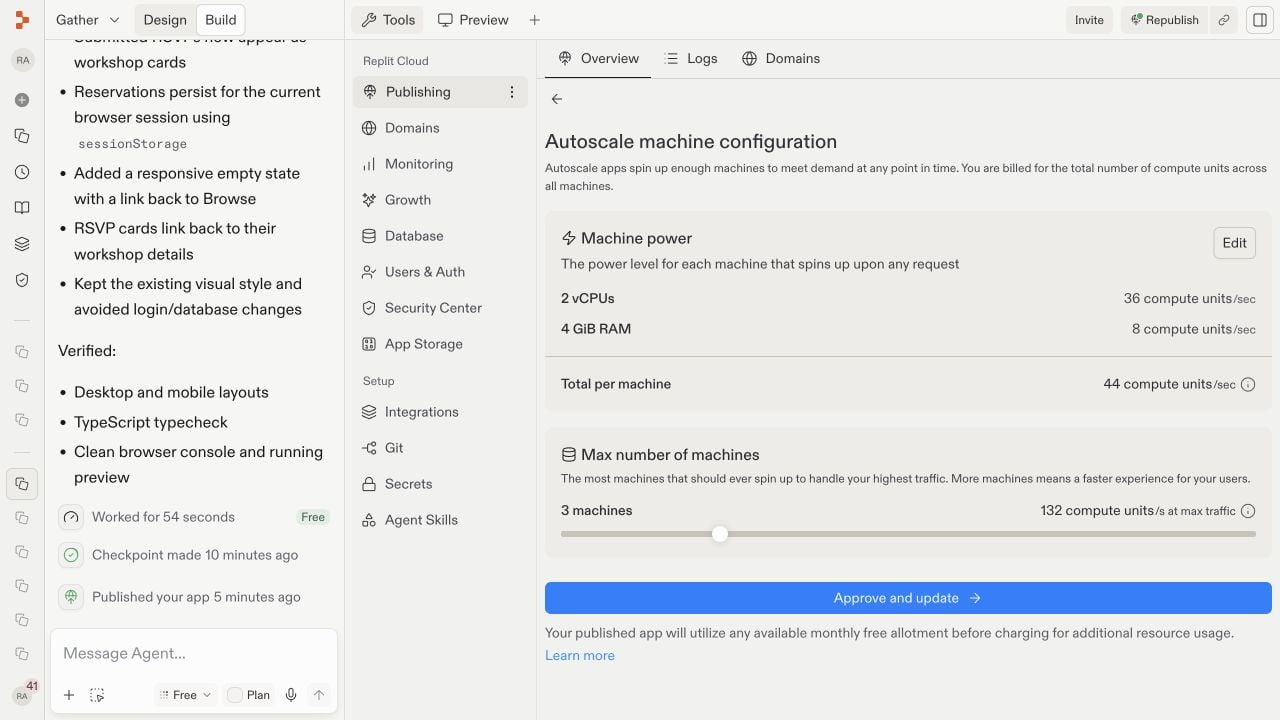
The **Publishing** pane is the deployment overview. It shows whether the latest release succeeded, who can access it, where it runs, how it is hosted, which resources it can use, and which domains point to it.

The **deployment type** describes how Replit runs the app. **Autoscale** starts more machines as traffic changes. **Reserved VM** keeps a machine continuously available. **Static** serves files that need no running backend, while **Scheduled** runs a program on a timetable. See [Deployment types](/features/publishing/deployment-types) to compare them.

**Machine power** is the CPU and memory available to each instance. The maximum machine count limits how far Autoscale can expand. See [Machine configuration](/features/publishing/machine-configuration). More resources can improve capacity and increase usage costs.

**Deployment geography** controls the region where the app runs. A region closer to most visitors can reduce latency. See [Project geography](/features/publishing/project-geography).

Depending on your app and plan, **Adjust settings** or **Manage** exposes these controls along with production secrets and related deployment options.

These are optional production controls. You do not need to change them to share a typical app, and some changes can affect availability or usage costs.

<Frame>
  <img src="https://mintcdn.com/replit/82Q9hMxIoxepT4ct/images/publish-gather/07-resource-settings.jpg?fit=max&auto=format&n=82Q9hMxIoxepT4ct&q=85&s=92b0a530db80585b1bb88f1015b10bb8" alt="The Gather Autoscale machine configuration showing machine power, CPU and RAM, the maximum number of machines, and estimated compute usage" width="1280" height="720" data-path="images/publish-gather/07-resource-settings.jpg" />
</Frame>

### Monitor the release

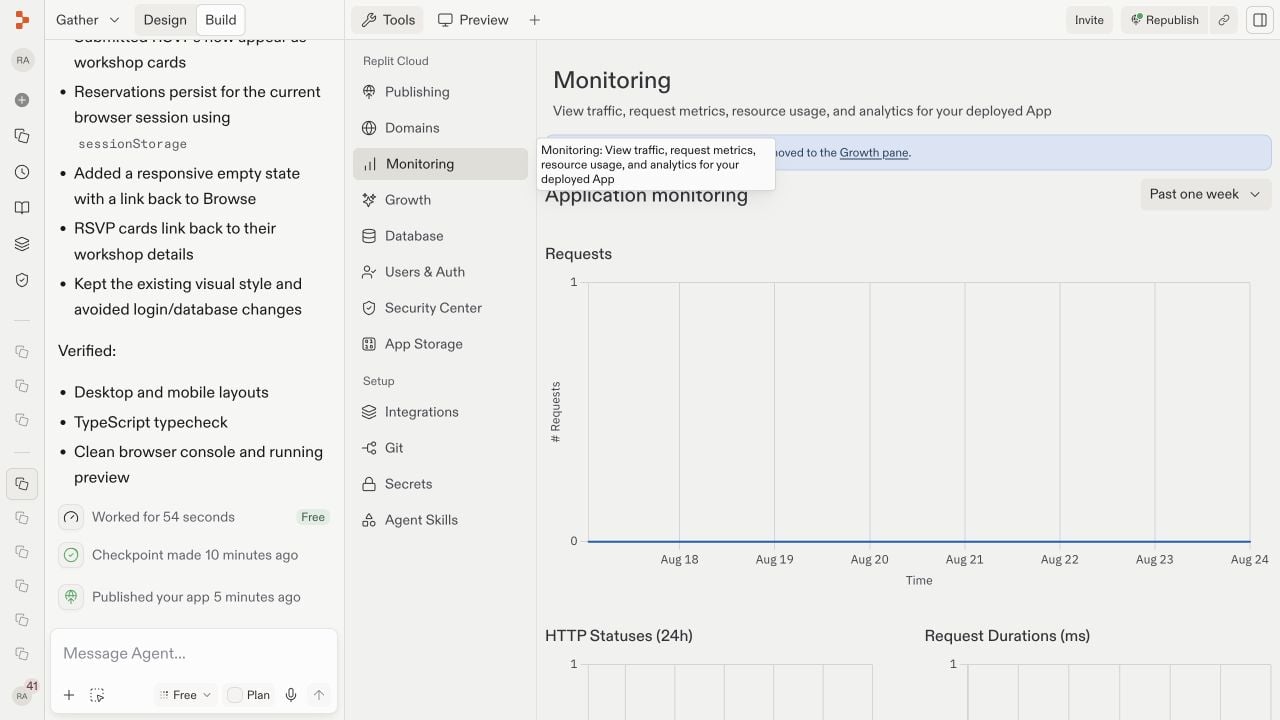
**Monitoring** answers a production question: *Is the app healthy and responding well?* Open **Monitoring** under **Replit Cloud** in the **Tools** pane. It shows requests, HTTP statuses, response durations, CPU utilization, and memory utilization. Status codes reveal failed requests, while durations reveal slow responses. CPU and memory charts help identify resource limits. New releases may show little data until the live app receives traffic. For the full tour, see [Monitoring your app](/features/publishing/monitoring-a-deployment).
<Frame>
  <img src="https://mintcdn.com/replit/82Q9hMxIoxepT4ct/images/publish-gather/05-monitoring.jpg?fit=max&auto=format&n=82Q9hMxIoxepT4ct&q=85&s=3a95750bf68df7ac1f91c6fd7b94323f" alt="The Gather Monitoring pane showing application request metrics and infrastructure CPU and memory charts" width="1280" height="720" data-path="images/publish-gather/05-monitoring.jpg" />
</Frame>

### Review traffic and growth

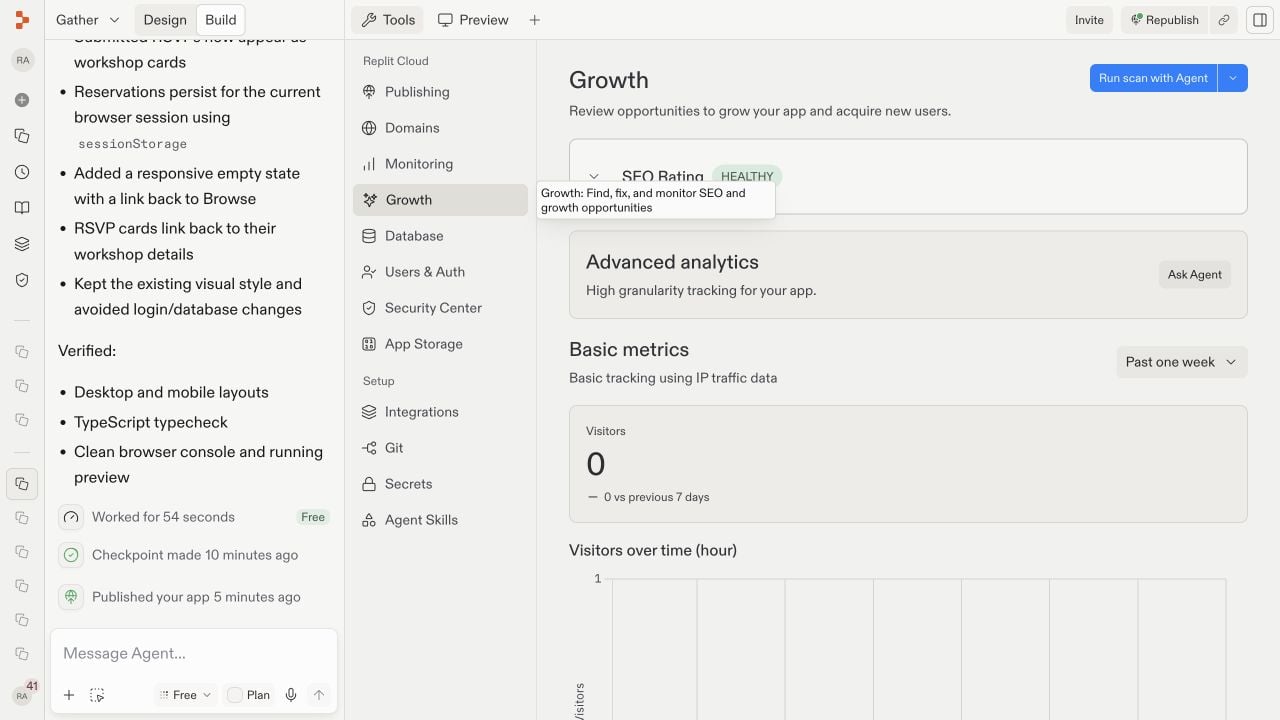
**Growth** answers a different question: *Are people finding and using the app?* Open **Growth** under **Replit Cloud** in the **Tools** pane. Basic metrics include visitors, top pages, referrers, countries, browsers, and devices. These show where an audience comes from and what attracts attention. The [SEO rating](/features/publishing/seo-rating) measures how well published pages are prepared for search engines. Builders on a paid plan can use [SEO Agent](/features/publishing/seo-agent) to scan for improvements. Analytics populate after the published app receives traffic.
<Frame>
  <img src="https://mintcdn.com/replit/82Q9hMxIoxepT4ct/images/publish-gather/06-growth-analytics.jpg?fit=max&auto=format&n=82Q9hMxIoxepT4ct&q=85&s=f44ef95cad5f739392f14c251b24d221" alt="The Gather Growth pane showing SEO status and basic visitor analytics for the published app" width="1280" height="720" data-path="images/publish-gather/06-growth-analytics.jpg" />
</Frame>

## Update your published app

Changes in the Project Editor do not automatically replace the live release. This separation lets you prepare and test a change without disrupting visitors. Test your changes in **Preview**, then select **Republish** when you are ready. Republishing creates a new production release at the same URL, so you do not need to send visitors a new link.

After republishing, open the public URL again and verify the changed behavior. If a release fails, use the publishing status and logs to identify the failing stage before trying again.

## Next steps

<section className="chat-mkt chat-workflow-grid has-visuals catalog-three-up">
  <a className="chat-example has-visual" href="/build/add-custom-domain">
    <div className="chat-use-case-visual palette-blush">
      <div className="chat-use-case-window">
        <i />

        <i />

        <i />

        <b />

        <b />

        <b />
      </div>

      <em>
        <Icon icon="globe" size={24} />
      </em>
    </div>

    <span>
      <Icon icon="globe" size={19} />
    </span>

    <div className="chat-card-title">Add a custom domain</div>
    <p>Use your own domain instead of `.replit.app`.</p>
    <div className="chat-card-link">Continue →</div>
  </a>

  <a className="chat-example has-visual" href="/learn/projects-and-artifacts/replit-deployments">
    <div className="chat-use-case-visual palette-stone">
      <div className="chat-use-case-window">
        <i />

        <i />

        <i />

        <b />

        <b />

        <b />
      </div>

      <em>
        <Icon icon="server" size={24} />
      </em>
    </div>

    <span>
      <Icon icon="server" size={19} />
    </span>

    <div className="chat-card-title">Deployment types</div>
    <p>Compare Autoscale, Reserved VM, Static, and Scheduled deployments.</p>
    <div className="chat-card-link">Compare deployments →</div>
  </a>

  <a className="chat-example has-visual" href="/build/troubleshooting">
    <div className="chat-use-case-visual palette-ink">
      <div className="chat-use-case-window">
        <i />

        <i />

        <i />

        <b />

        <b />

        <b />
      </div>

      <em>
        <Icon icon="triangle-exclamation" size={24} />
      </em>
    </div>

    <span>
      <Icon icon="triangle-exclamation" size={19} />
    </span>

    <div className="chat-card-title">Troubleshoot publishing</div>
    <p>Find common publishing problems and how to fix them.</p>
    <div className="chat-card-link">Troubleshoot →</div>
  </a>
</section>
