> ## Documentation Index
> Fetch the complete documentation index at: https://docs.replit.com/llms.txt
> Use this file to discover all available pages before exploring further.
# Agent Modes
> Learn how to choose between Free Mode, Power Mode, and Max Mode for your Agent builds.
export const FreeModePlanAvailability = `Free Mode is available on the Starter, Core, and Pro plans. Your Free Mode limits depend on your plan, and Core and Pro include an allowance that refreshes every ${FreeModeAllowanceRefreshPeriod}.`;
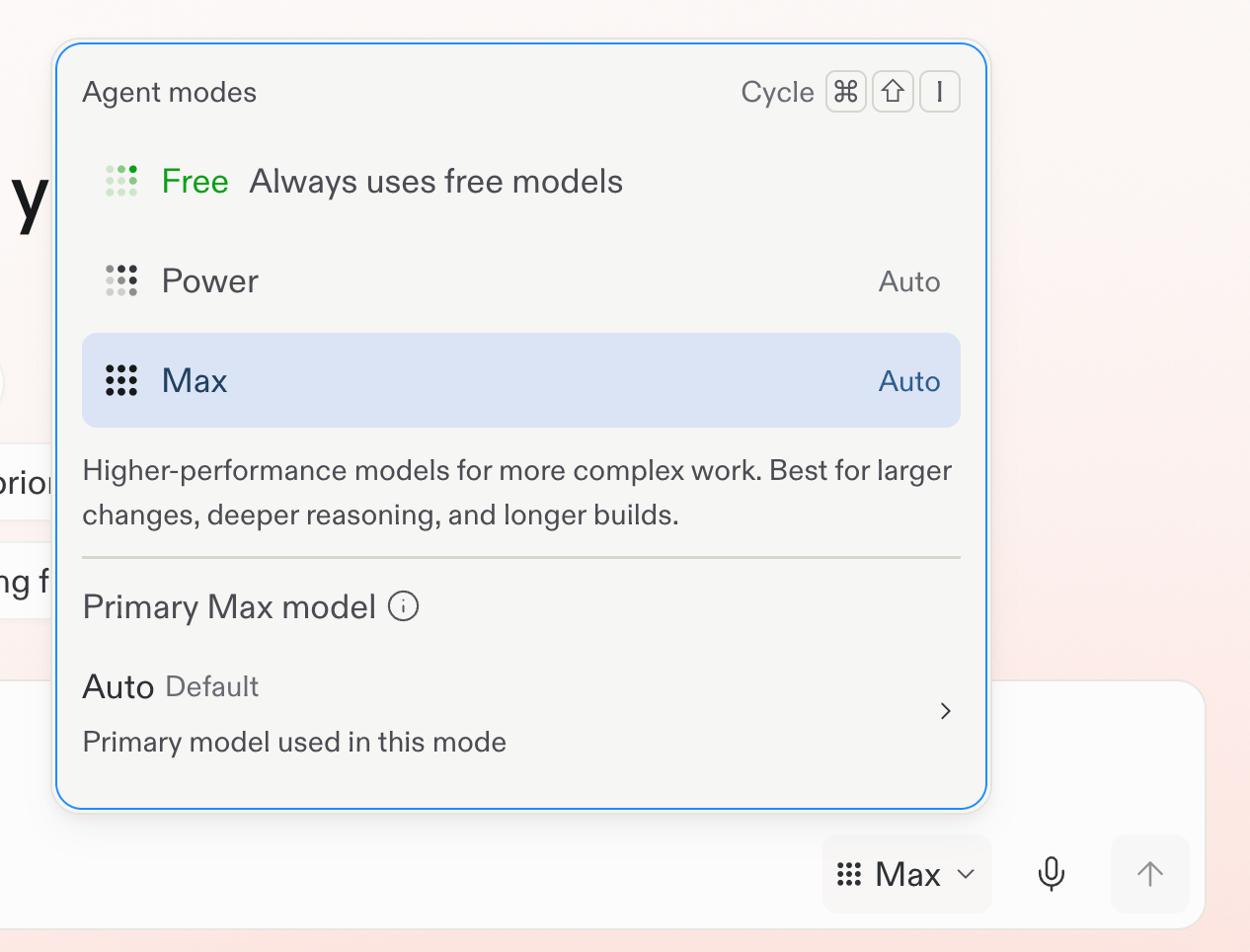
Agent modes let you control the balance between cost and capability when using Agent. Use the Agent settings dropdown to choose **Free Mode**, **Power Mode**, or **Max Mode**. Free Mode always uses intelligent model routing. In Power or Max, Core and Pro builders can select **Auto** to let Replit choose a model for each task. They can also use the [Model selector](/features/agent/model-selector) to choose a model manually. The modes and settings you see depend on your plan and workspace.
Economy Mode is no longer available. Power Mode replaces it at the same price.
**Keyboard shortcut:** Press **⌘+Shift+I** (Ctrl+Shift+I on Windows) to cycle
through Agent modes without leaving the chat input. The shortcut is inactive
while Auto mode is on; turn off Auto to cycle modes.
## Free Mode
**Optimized for getting started.** Free Mode helps you explore ideas, learn how Replit works, and begin a project.
**Keep in mind:** Free Mode always uses intelligent model routing. To select a model manually, use Power Mode or Max Mode.
{FreeModePlanAvailability} When you reach the limit for your plan, Replit
shows when it resets.
Routines do not run in Free Mode. They run in Power or Max Mode and require a per-run budget. Learn more about [Routines](/chat/routines).
 ## Intelligent model routing (Auto)
**Optimized for automatic model selection.** In Power Mode or Max Mode, Core and Pro builders can select **Auto**. Replit then chooses a model up to the selected mode's capability for each task. See [Use intelligent model routing](/chat/auto-mode).
Auto is a paid alternative to Free Mode. It uses subscription credits like other Power and Max work.
Enterprise workspaces use one **Auto mode** instead of Free Mode. Enterprise Auto can choose both the mode and an allowed model for each task.
## Power Mode
**Optimized for cost.** Power Mode uses fewer credits per task and is the best default when you want strong results without paying for the most capable models.
**Best for:** Everyday builds, learning, and cost-conscious work across an existing project.
## Max Mode
**Optimized for capability.** Max Mode uses more capable models for complex tasks, larger codebases, and harder problems.
**Best for:** Production-grade projects, complex features, and when you want the best results from Agent.
## Which mode should I use?
Use the following as a guide:
| Goal | Recommended mode |
| - | - |
| Explore ideas, learn how Replit works, and begin a project | Free Mode |
| Let Replit select a model for paid work | Auto in Power Mode or Max Mode |
| Maximize number of prompts per credit | Power Mode |
| Balance cost and quality for most projects | Power Mode |
| Select a model manually | Power Mode or Max Mode |
| Best results on complex, production-grade work | Max Mode |
| Best possible result on the most complex tasks | Max Mode with a higher [Effort](/features/agent/model-selector#effort) |
Use the Agent settings dropdown in the chat input to pick a mode. In Power or Max, Core and Pro builders can use Auto or set a [primary model and Effort](/features/agent/model-selector). No single mode is always best. Pick the mode that fits the task in front of you.
## Settings in shared projects
Your Agent settings are tied to you, not to the project. When you invite a teammate into a project, each of you keeps your own choices for:
* Mode (Free Mode, Power Mode, Max Mode)
* [Primary model and Effort](/features/agent/model-selector), when available
* [Plan Mode](/features/agent/plan-mode)
* Auto-merge for background tasks
* Auto-approve for plans
A teammate switching to Max Mode on their next task does not flip your settings to Max Mode. The mode and settings you see in the Agent settings dropdown are the ones Agent uses when you send the next message, regardless of how many collaborators are in the project.
## Check your Free Mode usage
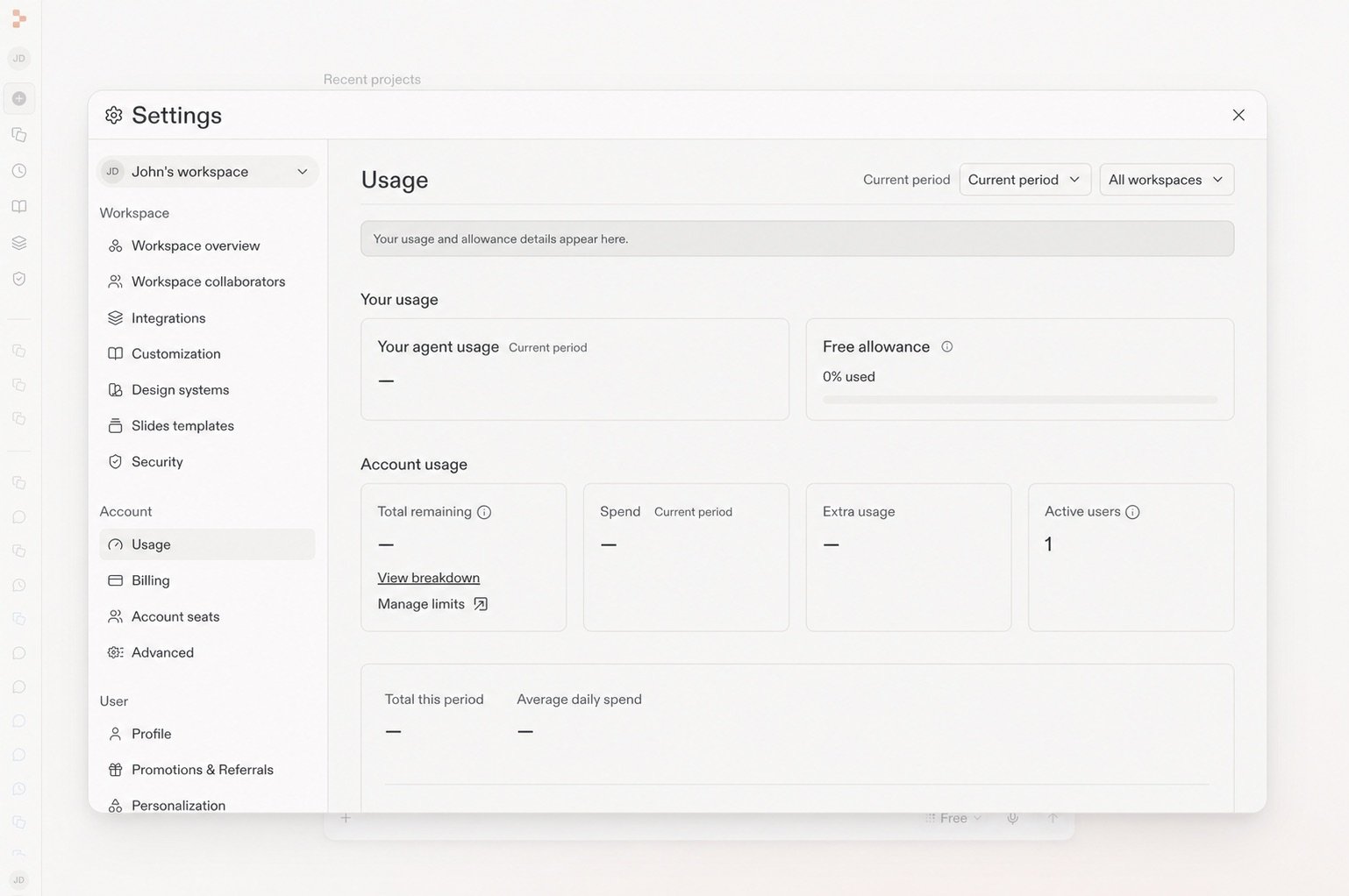
Open **Settings** → **Usage** to see your current Free Mode limit and reset timing. For practical guidance, see [Get the most out of Free Mode](/chat/free-mode).
## Intelligent model routing (Auto)
**Optimized for automatic model selection.** In Power Mode or Max Mode, Core and Pro builders can select **Auto**. Replit then chooses a model up to the selected mode's capability for each task. See [Use intelligent model routing](/chat/auto-mode).
Auto is a paid alternative to Free Mode. It uses subscription credits like other Power and Max work.
Enterprise workspaces use one **Auto mode** instead of Free Mode. Enterprise Auto can choose both the mode and an allowed model for each task.
## Power Mode
**Optimized for cost.** Power Mode uses fewer credits per task and is the best default when you want strong results without paying for the most capable models.
**Best for:** Everyday builds, learning, and cost-conscious work across an existing project.
## Max Mode
**Optimized for capability.** Max Mode uses more capable models for complex tasks, larger codebases, and harder problems.
**Best for:** Production-grade projects, complex features, and when you want the best results from Agent.
## Which mode should I use?
Use the following as a guide:
| Goal | Recommended mode |
| - | - |
| Explore ideas, learn how Replit works, and begin a project | Free Mode |
| Let Replit select a model for paid work | Auto in Power Mode or Max Mode |
| Maximize number of prompts per credit | Power Mode |
| Balance cost and quality for most projects | Power Mode |
| Select a model manually | Power Mode or Max Mode |
| Best results on complex, production-grade work | Max Mode |
| Best possible result on the most complex tasks | Max Mode with a higher [Effort](/features/agent/model-selector#effort) |
Use the Agent settings dropdown in the chat input to pick a mode. In Power or Max, Core and Pro builders can use Auto or set a [primary model and Effort](/features/agent/model-selector). No single mode is always best. Pick the mode that fits the task in front of you.
## Settings in shared projects
Your Agent settings are tied to you, not to the project. When you invite a teammate into a project, each of you keeps your own choices for:
* Mode (Free Mode, Power Mode, Max Mode)
* [Primary model and Effort](/features/agent/model-selector), when available
* [Plan Mode](/features/agent/plan-mode)
* Auto-merge for background tasks
* Auto-approve for plans
A teammate switching to Max Mode on their next task does not flip your settings to Max Mode. The mode and settings you see in the Agent settings dropdown are the ones Agent uses when you send the next message, regardless of how many collaborators are in the project.
## Check your Free Mode usage
Open **Settings** → **Usage** to see your current Free Mode limit and reset timing. For practical guidance, see [Get the most out of Free Mode](/chat/free-mode).
 ## Related
* [Managing your spend](/billing/managing-spend): Set alerts, budgets, and use Plan Mode for cost control.
* [Intelligent model routing](/chat/auto-mode): Let Replit select a model for each task.
* [Enterprise model controls](/features/collaboration/enterprise-model-controls): Control which models Auto mode can use.
* [Replit Pro](/billing/plans/replit-pro): Plan features and tiered credits.
On Enterprise, account admins use [Workspace Settings](/features/collaboration/workspace-settings) to control the model providers and models available in each Workspace.
## Related
* [Managing your spend](/billing/managing-spend): Set alerts, budgets, and use Plan Mode for cost control.
* [Intelligent model routing](/chat/auto-mode): Let Replit select a model for each task.
* [Enterprise model controls](/features/collaboration/enterprise-model-controls): Control which models Auto mode can use.
* [Replit Pro](/billing/plans/replit-pro): Plan features and tiered credits.
On Enterprise, account admins use [Workspace Settings](/features/collaboration/workspace-settings) to control the model providers and models available in each Workspace.