> ## Documentation Index
> Fetch the complete documentation index at: https://docs.replit.com/llms.txt
> Use this file to discover all available pages before exploring further.
# Users & Auth
> Manage the people who sign in to your app and choose how they sign in, with Replit Auth or Clerk.
export const AuthSystemDefaults = () =>
-
Starter, Core, and Pro: Clerk is the default.
-
Enterprise: Replit Auth is the default. An account administrator can change it to Clerk.
;
The Users & Auth tool manages the people who use your app and how they sign in. Open **Users & Auth** under **Replit Cloud** in the **Tools** pane.
The tool has two tabs:
* **Users**: Everyone who has signed in to your app, with their name and last sign-in time. Search the list to find a specific user.
* **Configure**: Your app's sign-in experience: the login screen's name and icon, which sign-in providers your app offers, and the session secret.
This tool manages your **app's** users: the people who sign up and log in to what you built. To control who can open your published app at all, see [Who can access your app](/features/publishing/private-deployments).
## Choose your auth system
* **[Replit Auth](/features/auth-and-identity/authentication)**: The zero-setup option. Ask Agent to add Replit Auth, and your app gets a prebuilt login page, user management, and secure sessions with no configuration.
* **[Clerk](/features/auth-and-identity/clerk-auth)**: A full-featured authentication service for apps that need more control, such as custom sign-in flows and your own OAuth branding. Set up [custom sign-in providers](/features/auth-and-identity/sign-in-providers) for Google, GitHub, Apple, and X.
## How Agent chooses an auth system
You can choose an auth system by naming it in your message to Agent. For example, ask "Add user authentication with Replit Auth" or "Use Clerk for sign-up and login." Agent uses the provider you request, regardless of your plan's default.
If you don't specify a provider, Agent uses the default for the account that owns your app when adding new authentication:
Replit Auth is the Enterprise default because it works well for internal tools used by teammates who already have Replit seats. They can sign in with their existing Replit accounts instead of creating separate app accounts.
### Change the Enterprise default
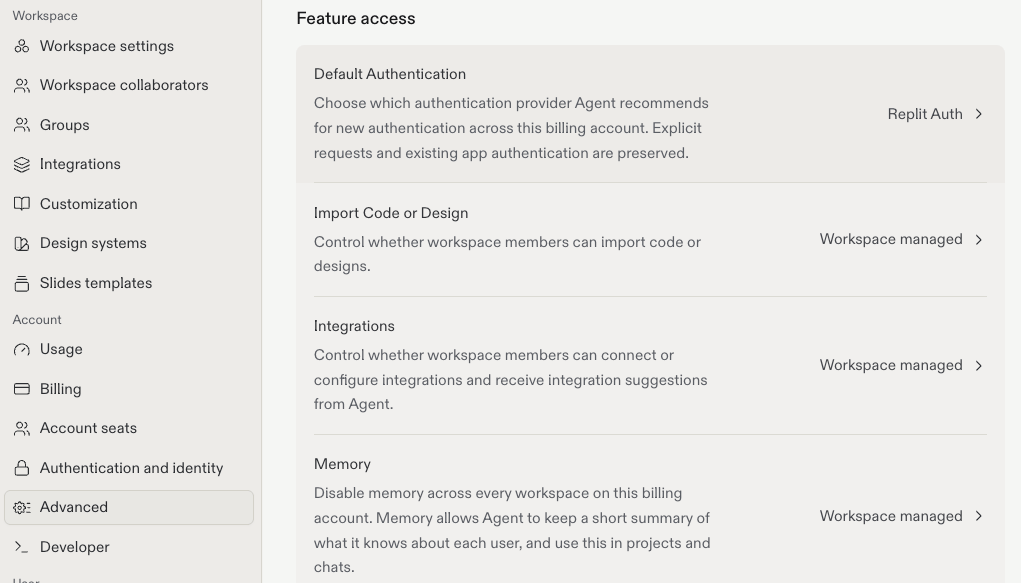
If you administer an Enterprise account, open **Settings > Account > Advanced > Feature access > Default Authentication**. Choose **Replit Auth** or **Clerk Auth** as the default for new authentication features across your billing account. You can still request a different provider in an individual Agent message.
 Agent preserves your app's existing authentication unless you ask to change it. Changing the account default does not migrate existing apps to a different provider.
## Next steps
* [Replit Auth](/features/auth-and-identity/authentication): Zero-setup sign-in for your app.
* [Clerk Auth](/features/auth-and-identity/clerk-auth): Full-featured authentication.
* [Sign-in providers](/features/auth-and-identity/sign-in-providers): Bring your own OAuth credentials.
Agent preserves your app's existing authentication unless you ask to change it. Changing the account default does not migrate existing apps to a different provider.
## Next steps
* [Replit Auth](/features/auth-and-identity/authentication): Zero-setup sign-in for your app.
* [Clerk Auth](/features/auth-and-identity/clerk-auth): Full-featured authentication.
* [Sign-in providers](/features/auth-and-identity/sign-in-providers): Bring your own OAuth credentials.