> ## Documentation Index
> Fetch the complete documentation index at: https://docs.replit.com/llms.txt
> Use this file to discover all available pages before exploring further.
# Enterprise model controls
> Choose which Agent model providers and models are available in each Enterprise Workspace.
Enterprise model controls let account admins manage which Agent models builders can select. Set a policy for the account, then set different model access for individual Workspaces.
Model controls are available exclusively to account admins on Enterprise accounts. Contact our sales team at [sales@replit.com](mailto:sales@replit.com) to enable it for your organization.
## Use Intelligent Model Routing
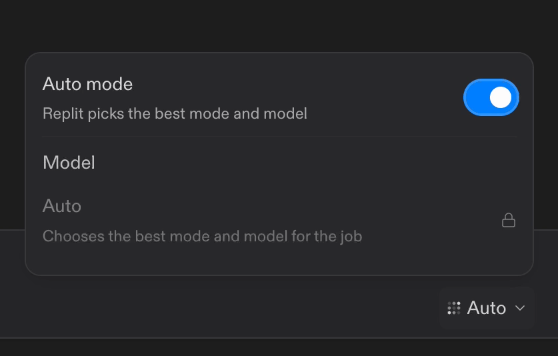
Intelligent Model Routing is the default Agent experience for Enterprise Workspaces. With **Auto mode** turned on, Replit chooses the mode and model that best fit each task while balancing quality and cost.
Routing selects from the pool of models authorized by the account and Workspace policies. Providers and models outside that pool are not eligible for selection. Builders can keep **Auto mode** on or turn it off to select an authorized model manually.
 Learn more about how routing works in [Use Auto Mode](/chat/auto-mode).
## Open Agent model settings
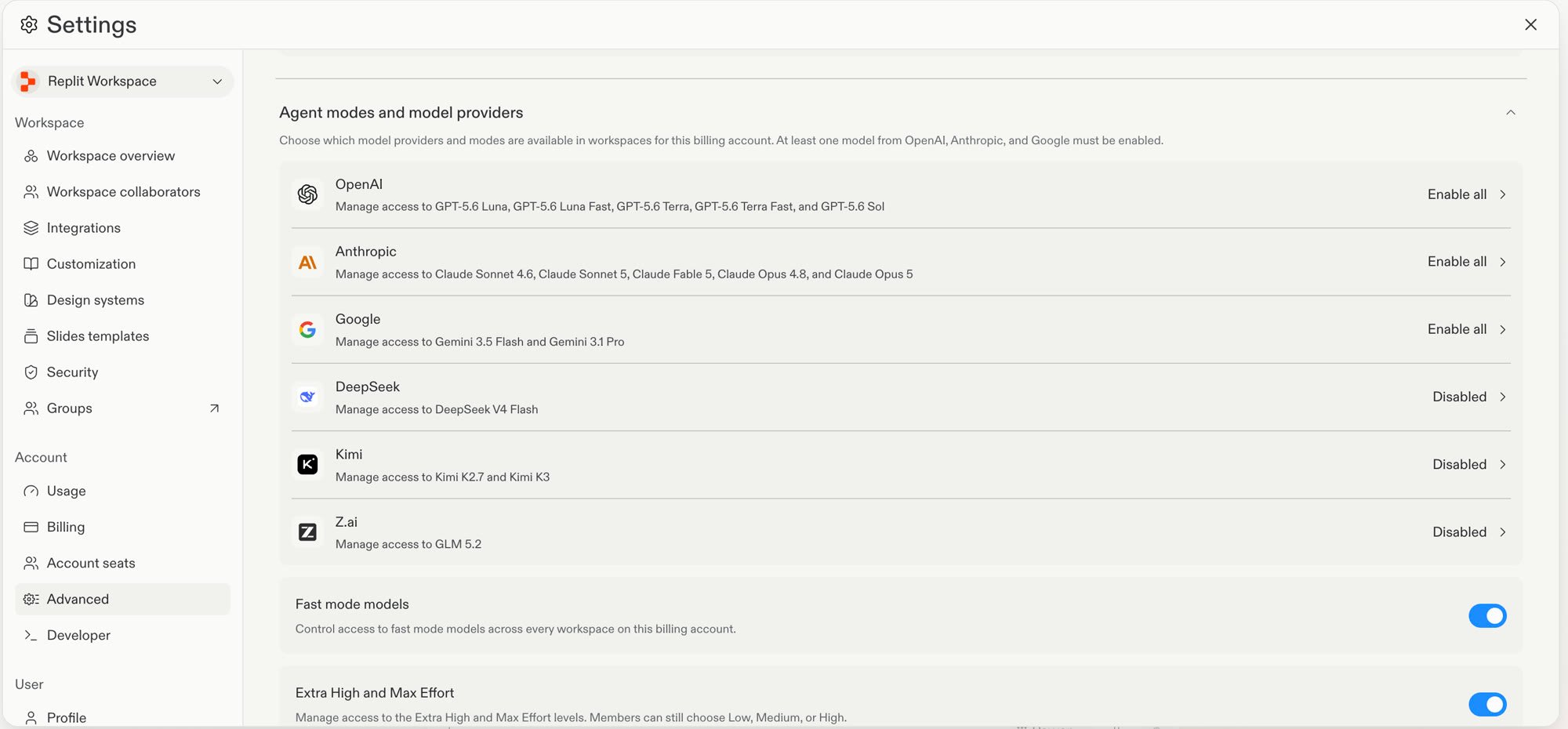
1. Open **Settings**.
2. Under **Account**, select **Advanced**.
3. Expand **Agent modes and model providers**.
Learn more about how routing works in [Use Auto Mode](/chat/auto-mode).
## Open Agent model settings
1. Open **Settings**.
2. Under **Account**, select **Advanced**.
3. Expand **Agent modes and model providers**.
 ## Set a provider policy
Select the model provider that you want to manage.
Under **Account policy**, select one option:
| Option | Result |
| - | - |
| **Enable all** | All models from the provider are available in every Workspace. |
| **Enable selected** | You choose the available models for each Workspace. |
| **Disabled** | No Workspace can use models from the provider. |
At least one model from OpenAI, Anthropic, and Google must remain enabled. You can disable other providers.
Select **Update**.
Open-source model providers are disabled by default. To make one available, select **Enable all** or **Enable selected**, then select **Update**.
## Set a Workspace policy
Use **Enable selected** when different Workspaces need different model access.
## Set a provider policy
Select the model provider that you want to manage.
Under **Account policy**, select one option:
| Option | Result |
| - | - |
| **Enable all** | All models from the provider are available in every Workspace. |
| **Enable selected** | You choose the available models for each Workspace. |
| **Disabled** | No Workspace can use models from the provider. |
At least one model from OpenAI, Anthropic, and Google must remain enabled. You can disable other providers.
Select **Update**.
Open-source model providers are disabled by default. To make one available, select **Enable all** or **Enable selected**, then select **Update**.
## Set a Workspace policy
Use **Enable selected** when different Workspaces need different model access.
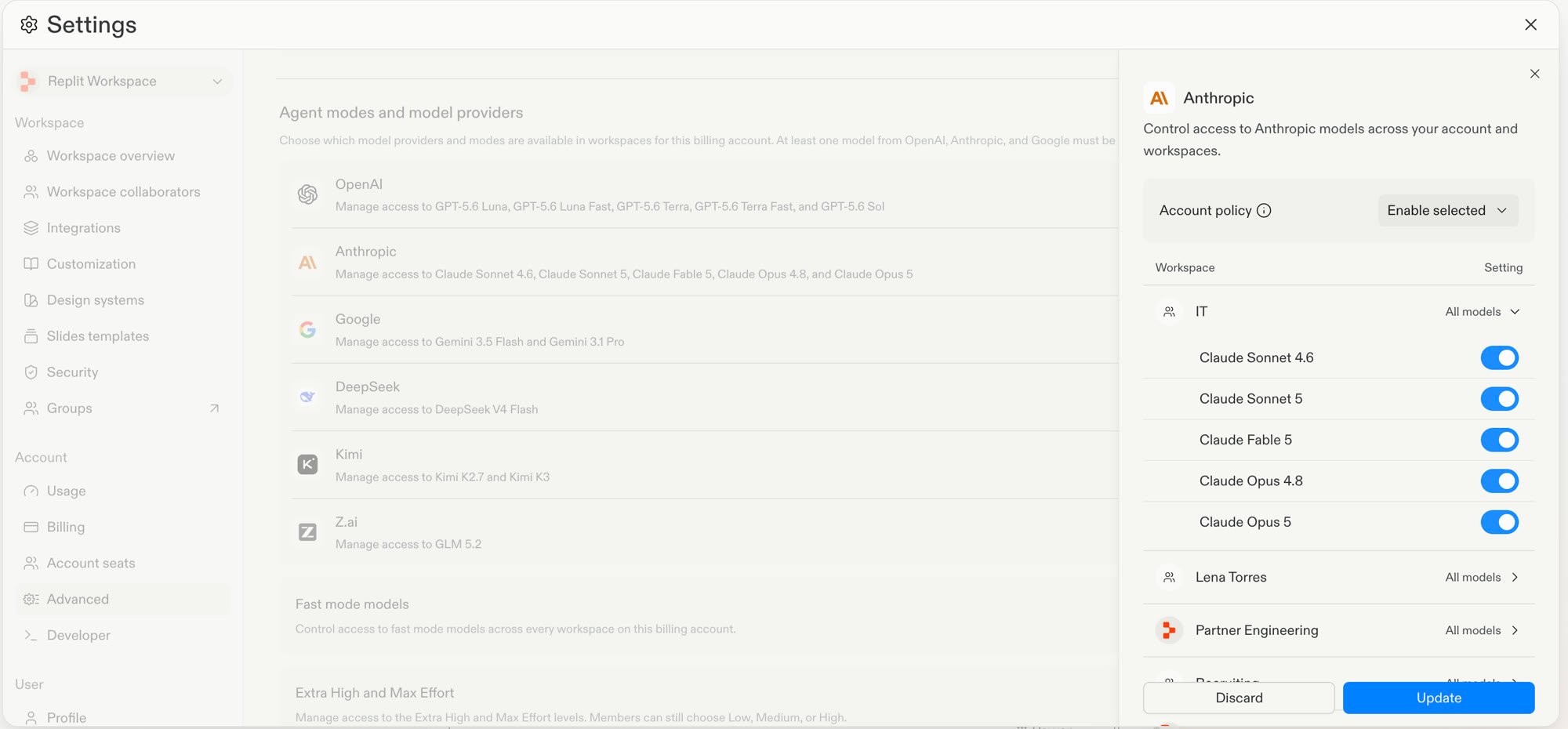 1. Open the provider settings.
2. Set the **Account policy** to **Enable selected**.
3. In the **Workspace** list, select the **Setting** dropdown for a Workspace.
4. Turn each model on or off for that Workspace.
5. Select **Update**.
Before you select **Update**, you can select **Copy to all** to apply the
current Workspace model selection to every Workspace in the account.
## Limitations
* Model policies apply to Workspaces. You cannot set a different policy for a user group in the same Workspace.
* Intelligent Model Routing does not override account or Workspace policies. It cannot select a disabled provider or model.
* The **Fast mode models** toggle in **Agent modes and model providers** controls access to fast model variants across every Workspace on the account. Provider policies and Intelligent Model Routing do not change that setting.
## Next steps
* Read [Workspace Settings](/features/collaboration/workspace-settings) for an overview of Enterprise policy controls.
* Read [Model selector](/features/agent/model-selector) to learn how builders select an available model.
* Read [Privacy and deployment settings](/teams/privacy-and-deployment-settings) to configure publishing and access controls.
1. Open the provider settings.
2. Set the **Account policy** to **Enable selected**.
3. In the **Workspace** list, select the **Setting** dropdown for a Workspace.
4. Turn each model on or off for that Workspace.
5. Select **Update**.
Before you select **Update**, you can select **Copy to all** to apply the
current Workspace model selection to every Workspace in the account.
## Limitations
* Model policies apply to Workspaces. You cannot set a different policy for a user group in the same Workspace.
* Intelligent Model Routing does not override account or Workspace policies. It cannot select a disabled provider or model.
* The **Fast mode models** toggle in **Agent modes and model providers** controls access to fast model variants across every Workspace on the account. Provider policies and Intelligent Model Routing do not change that setting.
## Next steps
* Read [Workspace Settings](/features/collaboration/workspace-settings) for an overview of Enterprise policy controls.
* Read [Model selector](/features/agent/model-selector) to learn how builders select an available model.
* Read [Privacy and deployment settings](/teams/privacy-and-deployment-settings) to configure publishing and access controls.