> ## Documentation Index
> Fetch the complete documentation index at: https://docs.replit.com/llms.txt
> Use this file to discover all available pages before exploring further.
# Shell
> Learn how to use Shell to manage project files, install packages, and run scripts.
Shell lets you work on your projects, like a typical terminal, for managing files,
installing packages, and running scripts. For example, you can browse project files or
use `psql` when your project has a configured database connection.
For better workflow management, prefer the **Run** button instead of running
your app from the Shell. The workflow started by the **Run** button sends
output to the Console tool, which provides a structured way to review the
logs.
## Features
Shell provides the following capabilities:
* **Run multiple shells**: Open multiple shell instances to work on different tasks simultaneously
* **Search for text**: Find specific text in the shell output
## Usage
Open a project before using either method.
Select the **+** button in the tab bar. A **New tab** opens with the **Tools & files** menu.
 Enter `Shell` in **Search tools**.
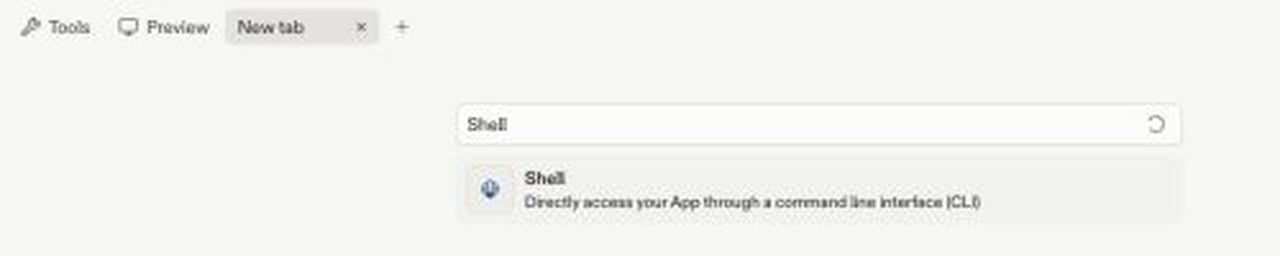 Select
  **Shell**. Shell opens in a new tab.
 Select **Search** at the top of the app sidebar. If **Search** is hidden, expand the sidebar first.
Enter `Shell`.
Select **Search** at the top of the app sidebar. If **Search** is hidden, expand the sidebar first.
Enter `Shell`.
 Select **Shell**. Shell opens in a new tab.
### Confirm Shell access
To confirm Shell is ready and view the current workspace, run:
```sh theme={null}
pwd
```
Shell prints the path to the current workspace.
Select **Shell**. Shell opens in a new tab.
### Confirm Shell access
To confirm Shell is ready and view the current workspace, run:
```sh theme={null}
pwd
```
Shell prints the path to the current workspace.
 For a project with a database, select **Tools** → **Database**, then open the
**Development database** page. This page provides connection controls. Keep
connection values private; do not copy them into documentation, screenshots,
logs, source files, or shared messages.
### Text search
The following steps describe how to access and use the text search tool:
1. Select the
For a project with a database, select **Tools** → **Database**, then open the
**Development database** page. This page provides connection controls. Keep
connection values private; do not copy them into documentation, screenshots,
logs, source files, or shared messages.
### Text search
The following steps describe how to access and use the text search tool:
1. Select the  magnifying glass at the top right of the Shell tab to open the search dialog.
2. Enter a search term and select **Next** to navigate through the matches.
3. Use **Previous** to go back to prior matches.
4. Select **Exit** or click outside the dialog to exit the text search.
### Multiple shells
To create another shell:
1. Select the Shell instance menu in the Shell panel header.
2. Select **New Shell**.
magnifying glass at the top right of the Shell tab to open the search dialog.
2. Enter a search term and select **Next** to navigate through the matches.
3. Use **Previous** to go back to prior matches.
4. Select **Exit** or click outside the dialog to exit the text search.
### Multiple shells
To create another shell:
1. Select the Shell instance menu in the Shell panel header.
2. Select **New Shell**.
 Use the same menu to switch between shells. Replit labels each shell with the last command executed to help you identify them.
When you open more than one shell, Replit automatically closes idle shell
instances. An idle shell is unselected and not running any user processes.
## Next steps
To learn more about related workspace tools, see the following resources:
* [Console](/features/workspace-tools/console/): Learn how to use Console to monitor your Replit App workflows.
Use the same menu to switch between shells. Replit labels each shell with the last command executed to help you identify them.
When you open more than one shell, Replit automatically closes idle shell
instances. An idle shell is unselected and not running any user processes.
## Next steps
To learn more about related workspace tools, see the following resources:
* [Console](/features/workspace-tools/console/): Learn how to use Console to monitor your Replit App workflows.