

What is a project?
A project is the container for everything you build on Replit. It holds your code, data, and all the artifacts you create — web apps, mobile apps, slide decks, data dashboards, and videos. When you tell Agent what you want, it sets up a project and builds the artifacts inside it. Think of a project like a workspace on your desk. Everything lives in one place and can share the same information, but each piece serves a different purpose. For example, if you ask Agent to build a fitness tracking app, it creates a project with a mobile app artifact along with the backend, database, and storage it needs to work. Key concepts:- Project: The container that holds everything — your code, data, and all your artifacts
- Artifact: A publishable output within a project (a web app, slide deck, video, etc.)
- Resources: Every artifact gets automatic access to a backend, database, and file storage — no setup required
Publishing pushes your entire project live at once. All artifacts go live
together, so they always stay in sync.
What you can build
A single project can hold multiple artifacts. For example, you could build a web app for your customers, a mobile app for your team, and a slide deck for investors — all in the same project. When artifacts live in the same project, they automatically share the same data and backend logic. To learn more, see Artifacts.
Managing your projects
Your Projects page lists every project you’ve created or been invited to. It’s the fastest way to jump back into recent work and find the right project in a busy workspace.Request changes from a chat
You can request an update without first opening the project. Ask Replit to find your project and delegate a feature or fix as a background task:Find my budgeting app and create a task to add CSV export. Link me to the task.The request starts in your chat; an agent working on the project carries out the task. Open the linked task to follow its progress, review changes, and continue work in the project. Requesting an edit does not automatically publish your app. Review the changes before choosing to publish your project. Follow the update an existing project walkthrough.
See at a glance what’s inside each project
Every project card shows small icons for the artifacts it contains for each web app, mobile app, slide deck, data visualization, or animation in the project. Hover any icon to preview that artifact’s screenshot directly on the card, so you can tell projects apart without opening them.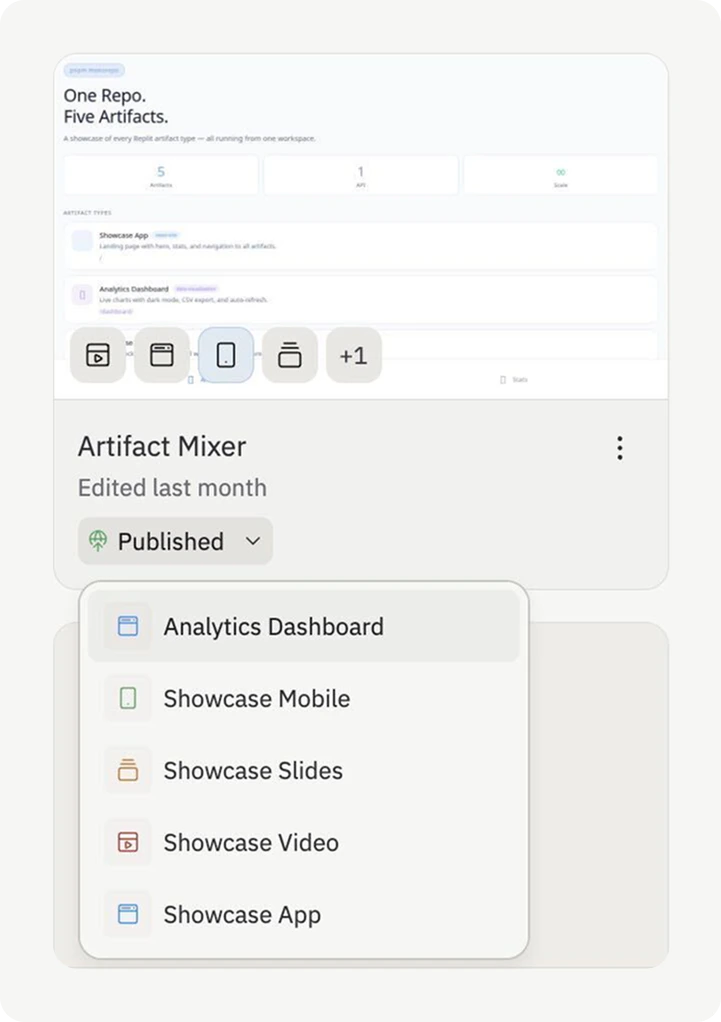
Filter by artifact
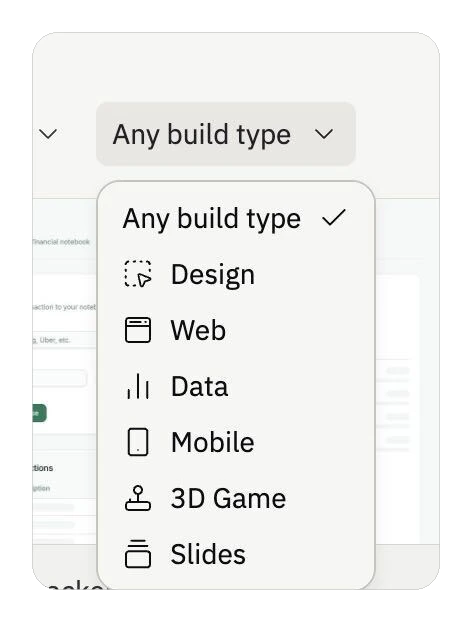
Use the Build type dropdown at the top of the Projects page to filter your list by artifact. Pick one to see only the projects that contain that kind of artifact:- Web — projects that contain a web app
- Mobile — projects that contain a mobile app
- Data — projects that contain a data visualization
- Slides — projects that contain a slide deck
- Design — projects in Design mode
- 3D Game, Agent & Automation, and more
Sort by last opened
The Projects page is sorted by last opened by you by default — the projects you’ve spent time in most recently appear at the top. This is especially useful in team workspaces, where other members’ recent edits would otherwise bury your current work. You can switch the sort by selecting a different column header (for example, Last updated or Name).Pin the projects you use most
Pin a project to keep it at the top of your list. Pins are private to you — pinning a project in a team workspace doesn’t change what other members see. To pin a project, open the overflow menu (three dots) on the project card and select Pin. Select Unpin from the same menu to remove the pin.Next steps
Artifacts
Learn how to create, switch between, and manage artifacts
Web Apps
Build full-stack web applications
Mobile Apps
Create native iOS and Android apps
Data Visualization
Build interactive dashboards and data exploration tools
Slide Decks
Create presentations through conversation