

What you can do in Chat
- Start and continue chats. Ask a question, explore an idea, or describe a result you want to create. Learn about chats.
- Give Replit useful context. Add files, images, connected tools, and clear instructions so your request is grounded in the information that matters. Learn about context.
- Research and analyze. Ask Replit to find information, compare sources, and turn what it finds into a useful brief, plan, or decision.
- Run recurring work. Create a Routine to check a source or complete a recurring task, then review each result in the same chat. Learn about Routines.
- Turn work into a project. When a chat becomes substantial, turn it into a project to build an app, slide deck, design, or other outcome. Compare chats and Projects.
- Update an existing project. Ask Replit to find your project and delegate a feature or fix as a background task in that project. Open the linked task to review the changes. Learn how to update an existing project.
Start with a chat
Open a new chat whenever you want to investigate, plan, or create. You don’t need a perfect prompt or a finished brief. Start with what you have, such as a question, a rough idea, a file, or a problem to solve. Then use follow-ups to add context, clarify the outcome, and move the work forward. When you have a useful result, keep going in the same chat. Replit builds on the context you already shared. Turn an answer into a dashboard, a plan into a page, or a website into a pitch deck without starting over.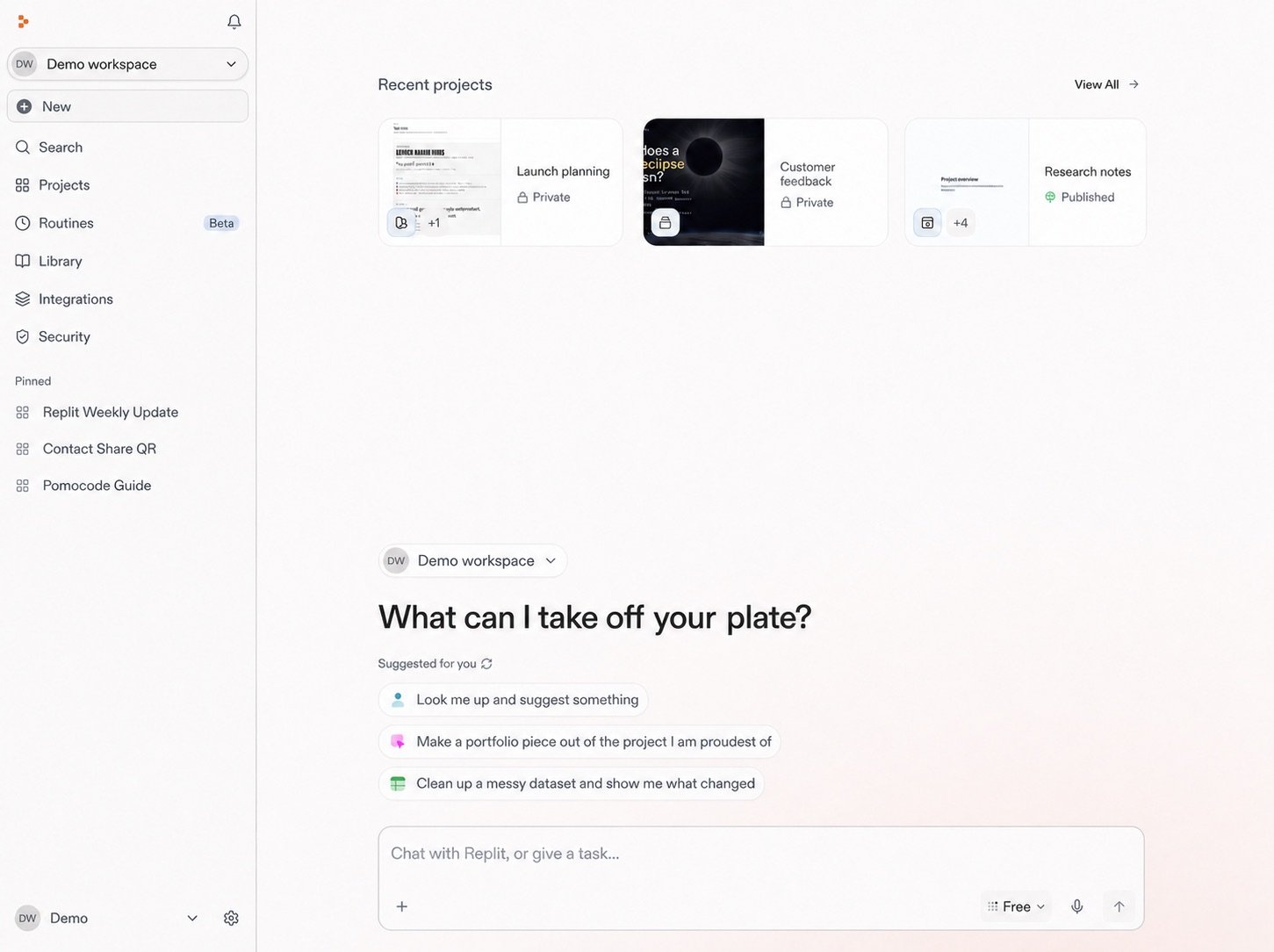
Start a new chat from your Replit home.
Add context when it matters
Replit can work from the information you provide. Upload a document or image, connect a supported service, or tell Replit what details should shape the work.- Upload and use files for documents, spreadsheets, screenshots, and other source material.
- Integrate your tools to use information from supported services such as Slack, Google Drive, and Salesforce.
- Work with Figma to use a design frame as visual direction.
Choose how Replit works
Before you send a request, choose the mode that matches the work. Free Mode is available on the Starter, Core, and Pro plans and is useful for everyday chat, creation, and building. Power Mode and Max Mode use credits when you need more capability or want to choose a specific model.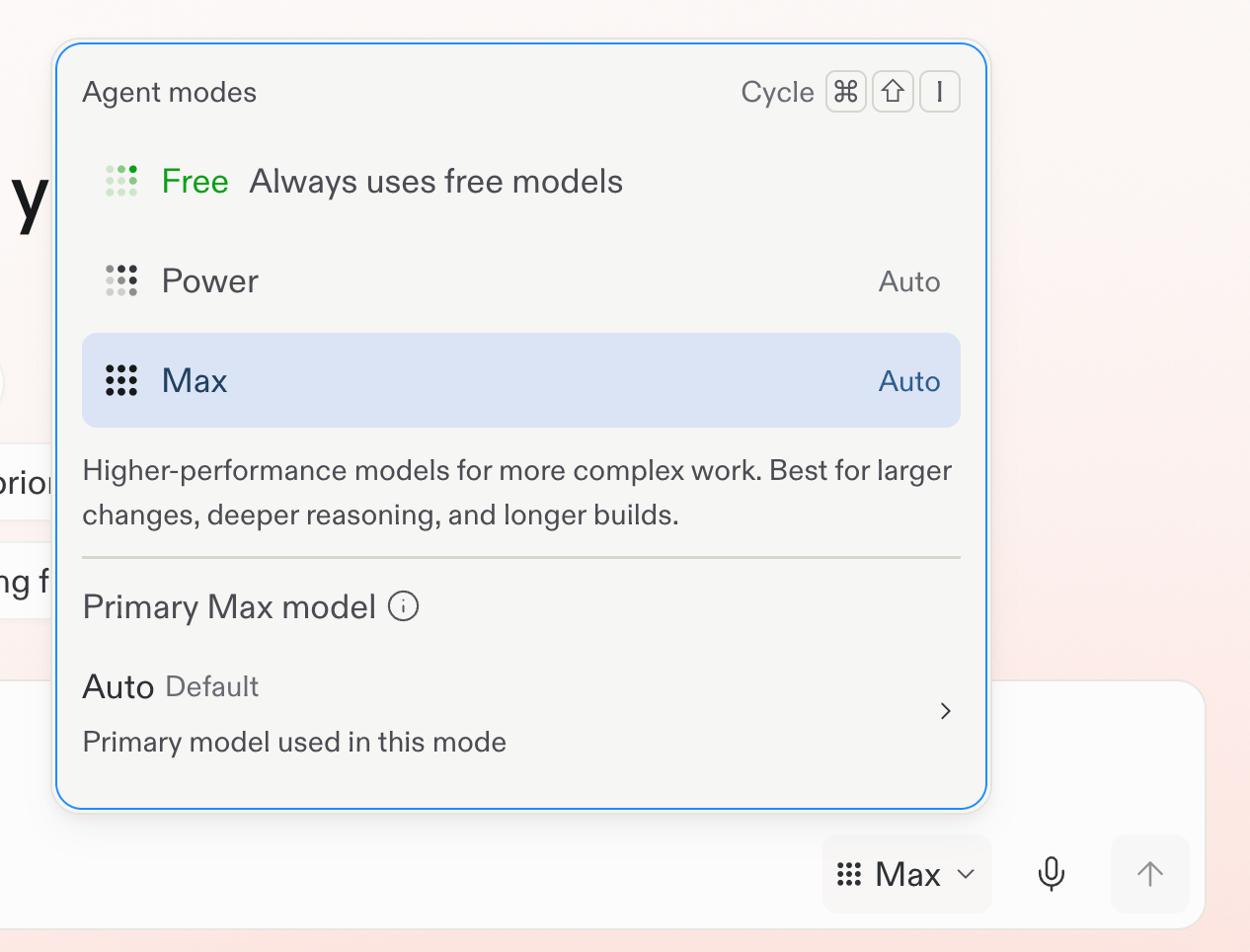
Choose a mode from the selector below the prompt box.