Use Design mode to shape how your app looks, screen by screen.
How your app looks is as much a part of it as what it does. PixelGames is a Game Boy on a
phone: the cream shell, the olive-green screen, and the chunky buttons are the whole point.
A generic app layout would lose it.
1
Switch to Design mode
Switch to Design mode on the toggle at the top left of your workspace:
The Design and Build toggle with Design selected in the PixelGames workspace.
2
Describe what you want to Agent
Describe the result and Agent handles the rest. Ask for several versions at once to find a direction.
3
Compare the versions
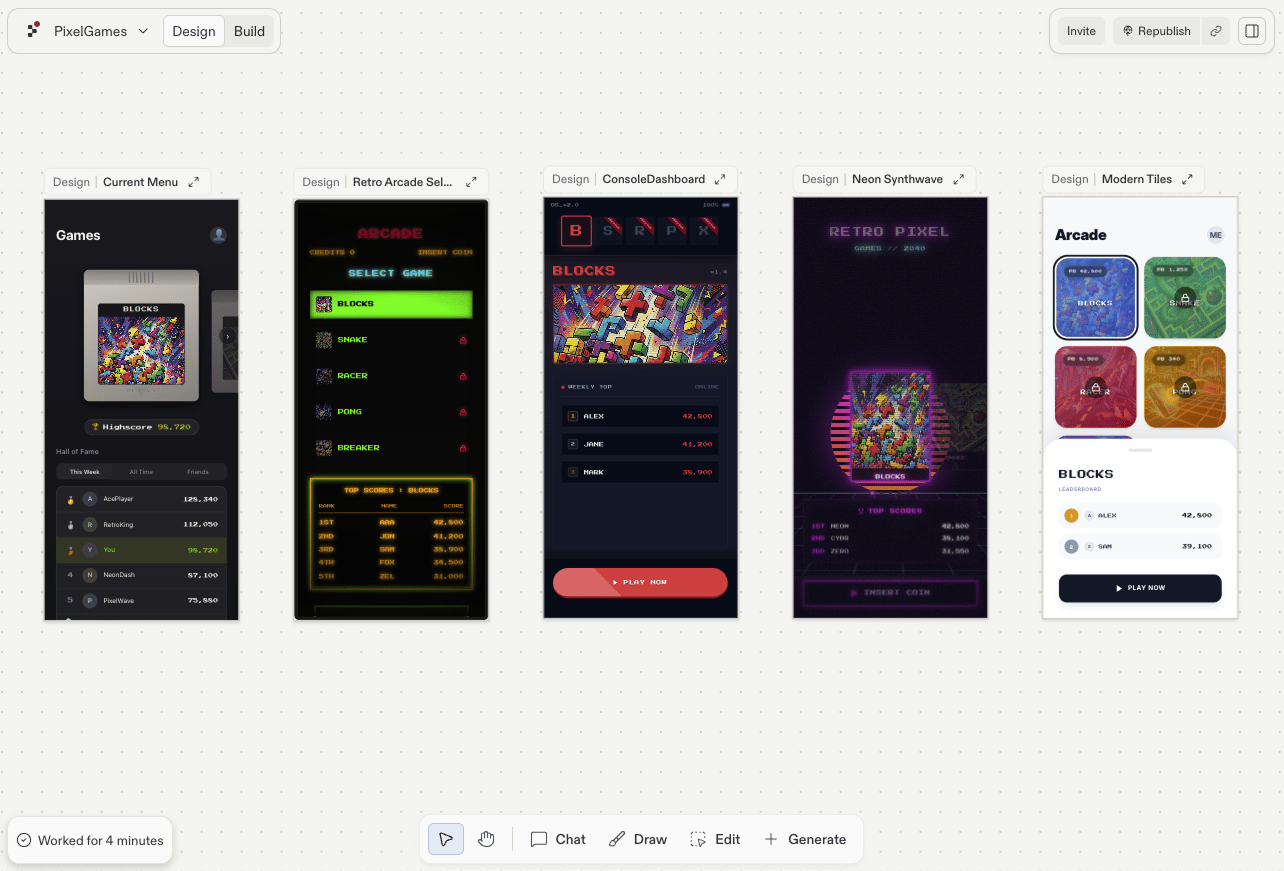
Agent lays them out side by side on the canvas, so you judge them as whole screens rather
than one at a time.
4
Pick one and see where to take it
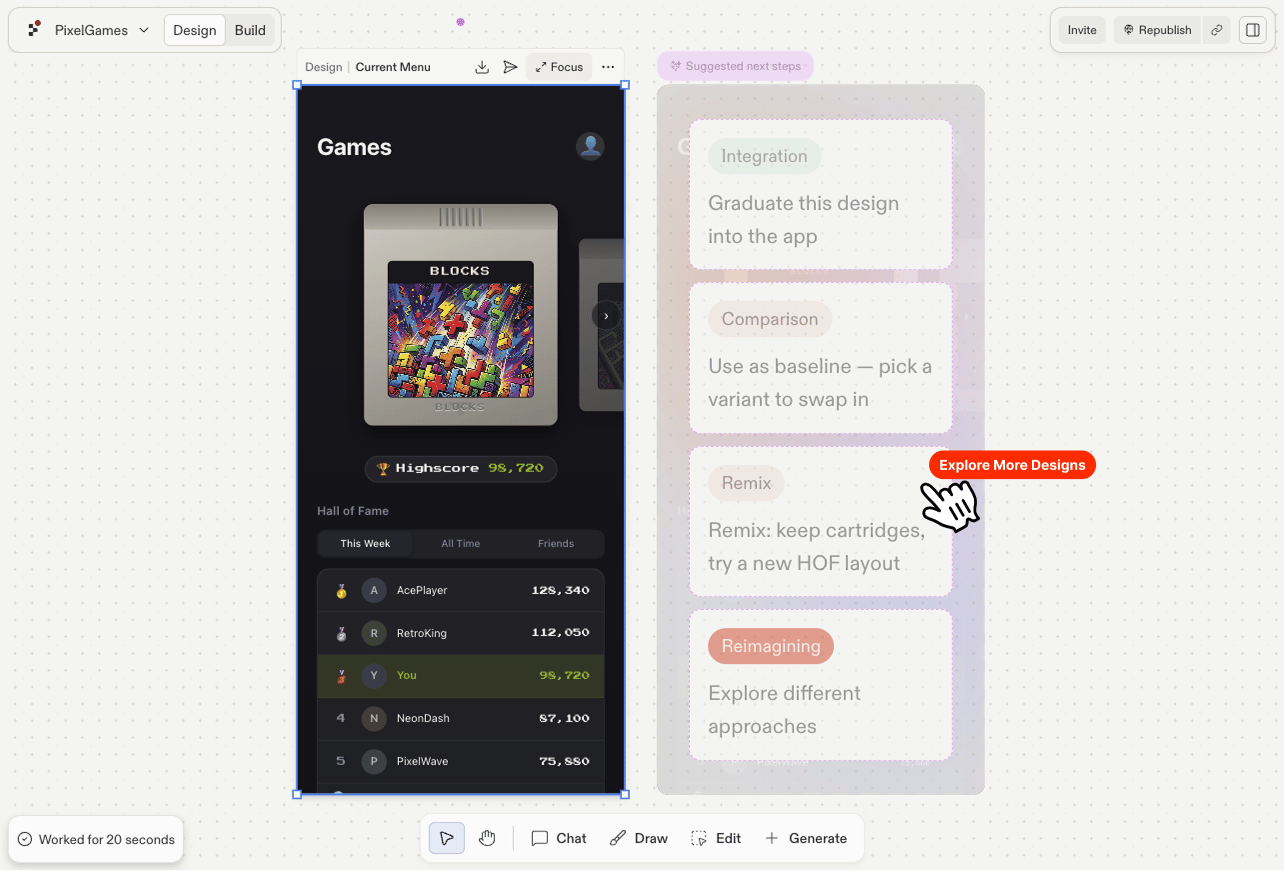
Select a design, then use the suggestions that appear next to it to try other variations.
A selected design, with suggested next steps beside it.
5
Build the version you want
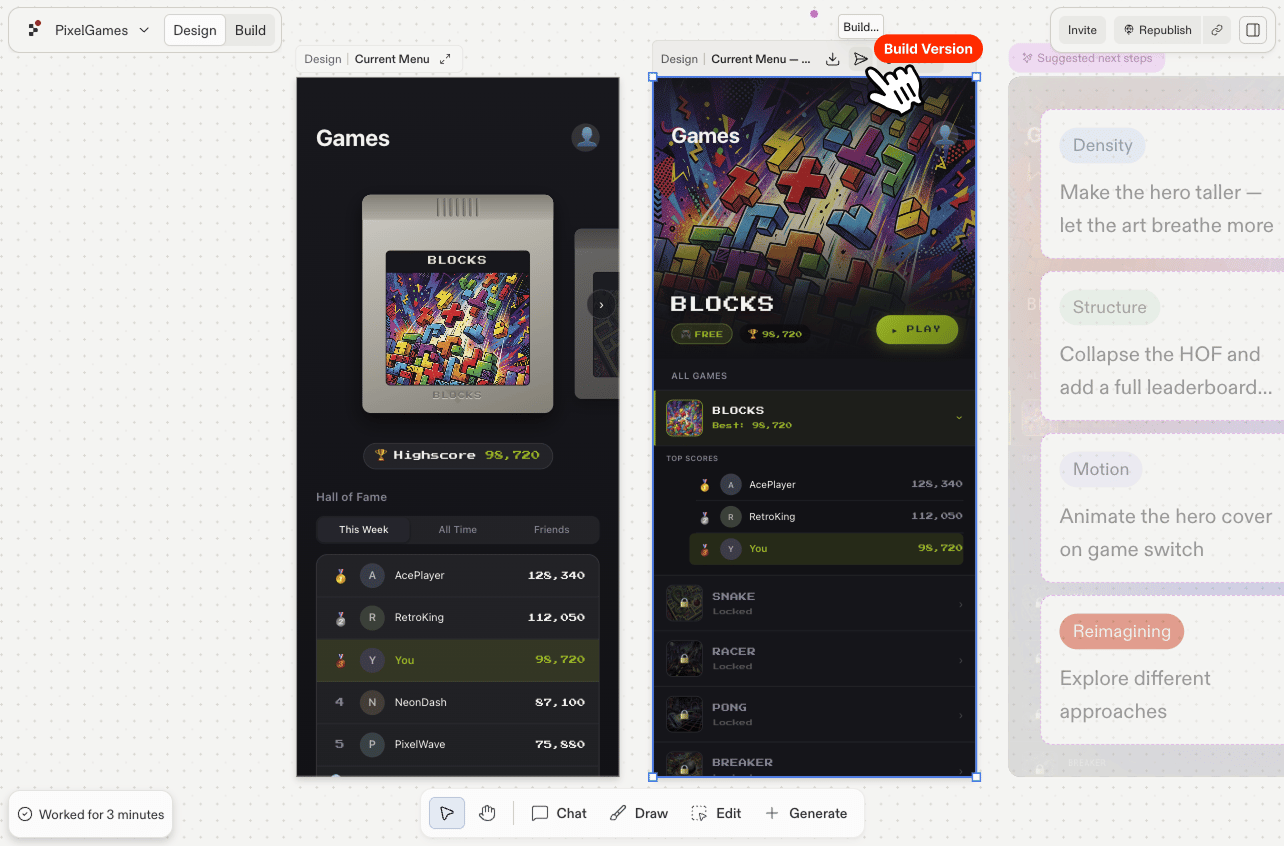
Once a version is right, click the send icon in the toolbar above it. Agent takes that
design off the canvas and builds it as a real screen in your app.
The send icon turns the selected design into a real screen.
Troubleshooting
The change went further than you wanted: ask Agent to revert it and describe a smaller
change, one screen or one element at a time.
It looks right in preview, wrong on a phone: name the device and what you saw, safe
area and screen size handling are the usual causes.
A change keeps getting undone: the same value may be set in more than one place, ask
Agent where the styling for that screen actually lives.