Chats are private. Only you can access them in your Workspace. For
collaboration, ask Replit to create a Project.
Start a new chat
1
Select New
Select New in the Replit sidebar.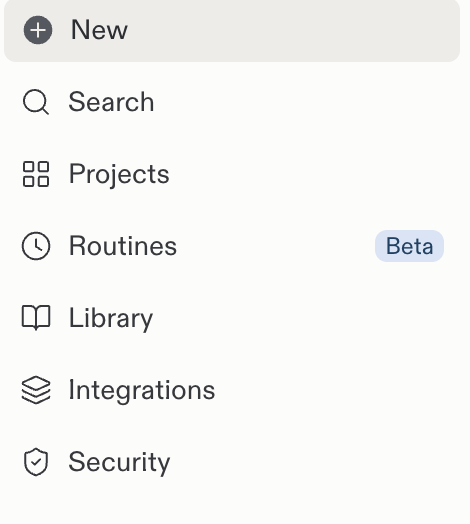
2
Write your request
Use the prompt box to write your request. For example, ask Replit:
“Summarize our Slack activity from this week and flag messages that need my
reply.”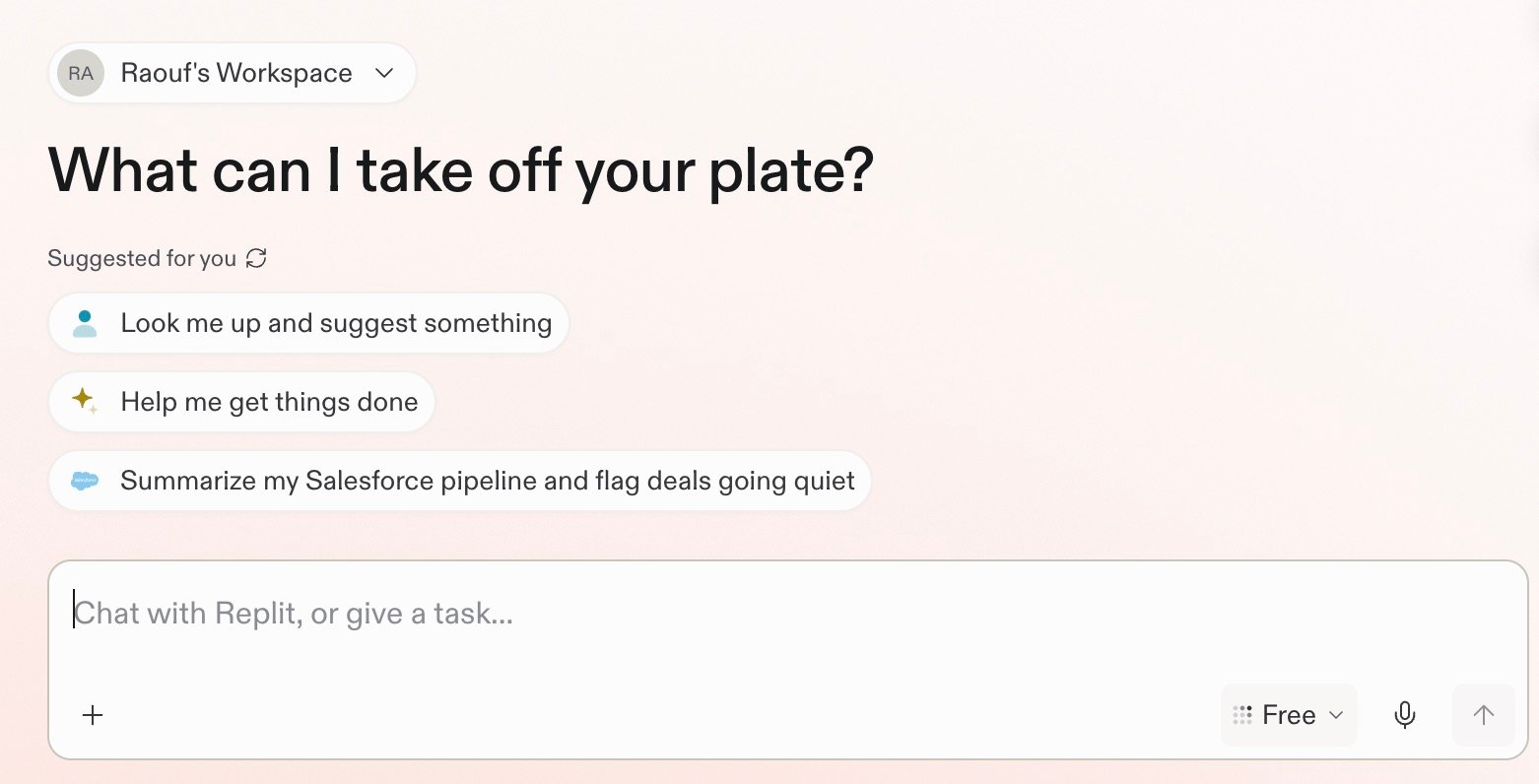
Start with what you have, then keep going
You don’t need to know the final output before you start. Begin with a question, a rough idea, or the information you already have. Each follow-up builds on the context in the chat.- Ask. Start with a plain-language question or problem. For example: “How can I reach morning commuters?”
- Keep going. Add context or narrow the direction with a short follow-up: “How do I choose the right café partner?”
- Make something. Turn what you learned into a useful output: “Build a loyalty app for commuters.”
- Keep creating. Ask for the next outcome without a new brief: “Now create launch graphics in the same style.”
- Launch a brand from one conversation: website, pitch deck, and launch graphics.
- Turn a spreadsheet into a team dashboard: analysis, a published dashboard, and a findings deck.
- Plan a launch from budget and feedback: budget, feedback themes, and a launch plan.
- Analyze your app funnel: a funnel question, then an interactive dashboard.
Start with what you want to do
Ask a question
Replit can research and analyze information from the web, connected tools, and uploaded files. Ask a focused question or provide the context Replit should use. For example, ask Replit to summarize your Slack activity from this week and flag messages that need your reply.Research and analyze
Prepare for a customer call
Bring together connected sources and prepare a focused call brief.
Explore →
Work with files
Upload documents, spreadsheets, and images to understand, compare, or analyze them.
Explore →
Run a routine
A Routine schedules recurring work inside a chat. Replit returns each result to the same chat, where you can review and continue the work. Learn more about Routines. For example, ask Replit to review Slack every morning and return your priorities.Schedule a routine
Schedule recurring work and review each result in the same chat.
Explore →
Act on insight
Turn what you learn into a brief, plan, decision, or next step.
Explore →
Describe an outcome
A chat can turn an idea, research, or an insight into a concrete result, such as an app, presentation, or design. For example, ask Replit to create a simple project tracker for your team.Build on insight
Create a dashboard, app, or tool around the information that matters.
Explore →
Explore designs
Gather references and turn an idea into a visual direction.
Explore →
Update existing projects
Ask Replit to find a project and describe the change you want. You don’t need to open the project first. Replit starts the work as a background task in that project, so you can keep going in your chat. For example, ask Replit to find your budgeting app and create a task to add CSV export. You can also update several projects in one request. For example: “Look for my portfolio and coffee shop projects and change both to Replit colors.” Tasks started from your chat appear in the side panel. Use it to follow each task’s progress, review the changes, and open the project to continue the work.You can only update projects you have permission to access. Requesting an
edit does not automatically publish your app. Review the changes before you
publish your project.
Chats vs. Projects
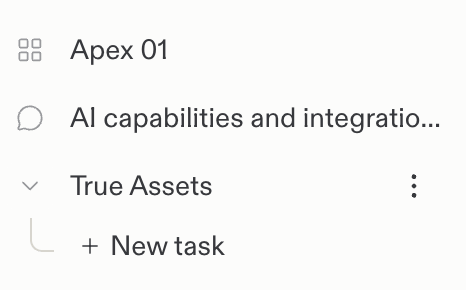
A chat is a single thread for questions, exploration, and Routines. A Project is a deeper workspace for substantial build and design work, including multiple artifacts. Start in a chat. When the work grows into a substantial build or design, the chat can become a Project. The sidebar uses a chat bubble icon for chats and a four-square grid icon for Projects.